1 / 23
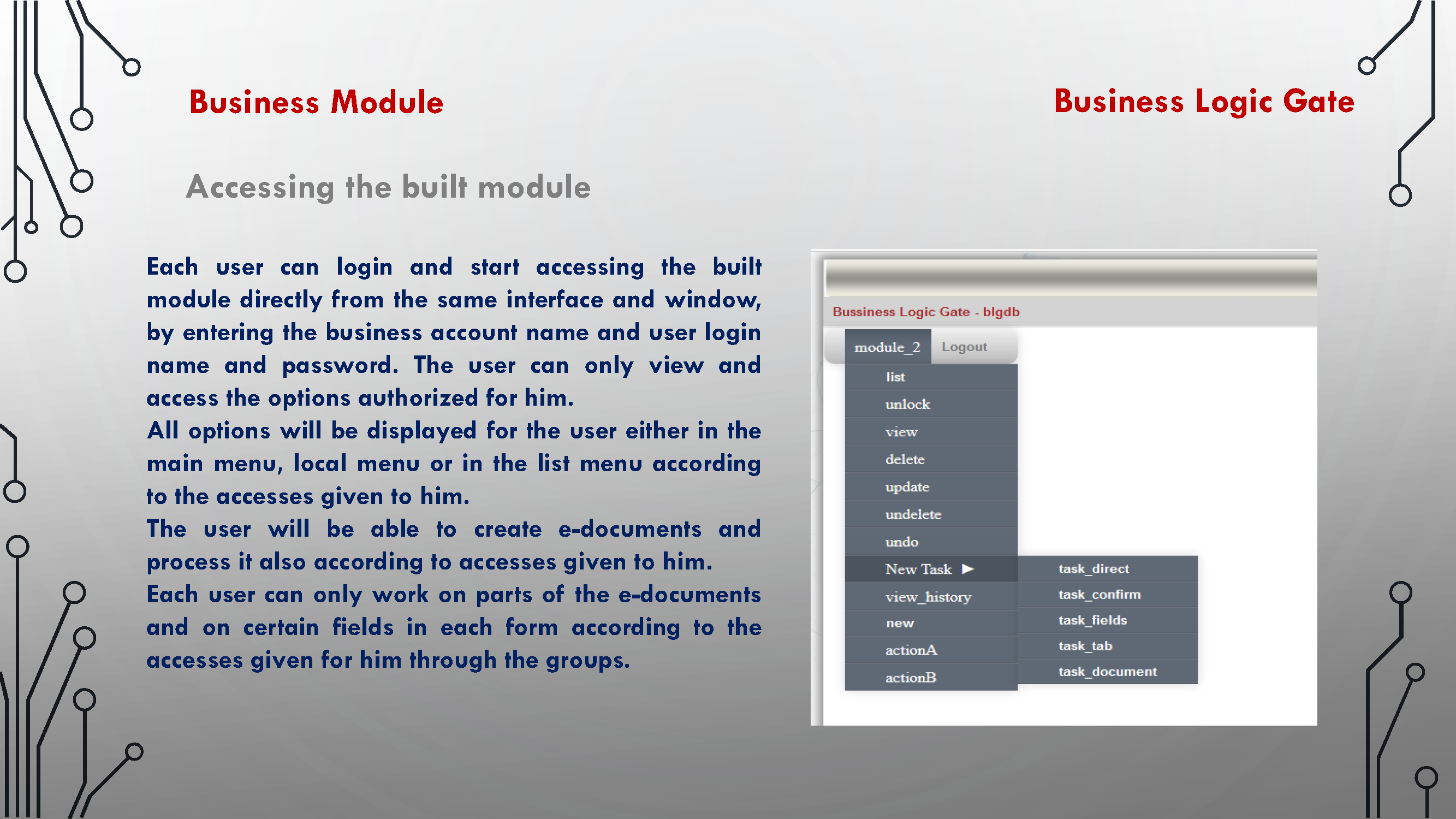
1: Accessing new module with new user and password
2 / 23
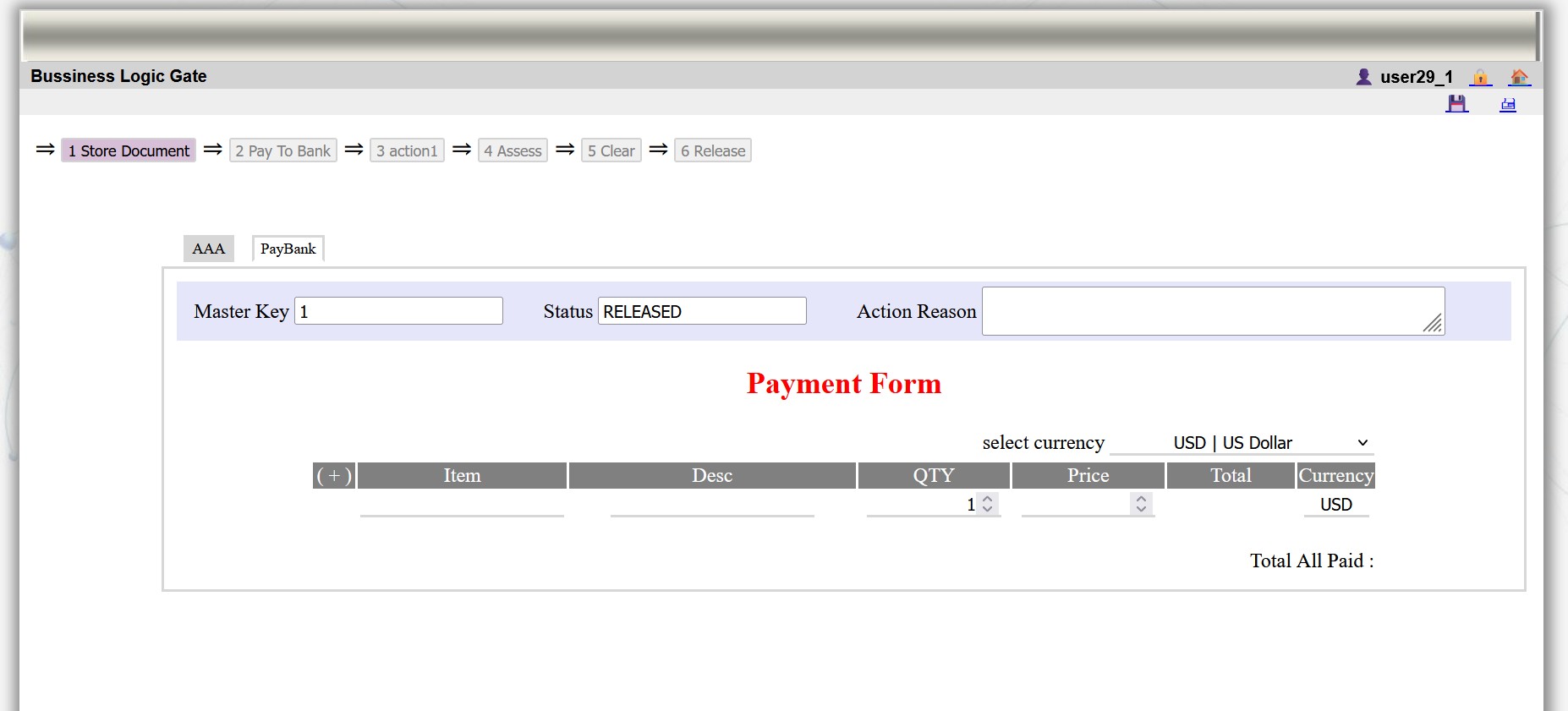
2: Creating first form of the new module appears with actions and tabs according to the configuration of the module
3 / 23
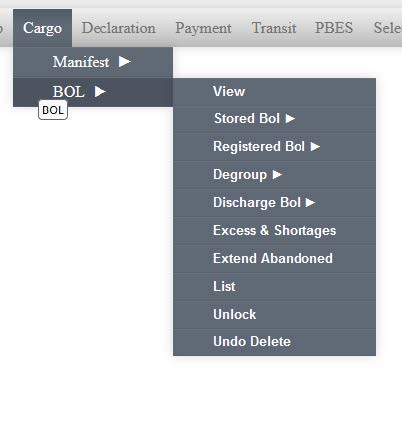
3: Example for main menu of cargo module and options created for actions and tasks to be applied for e-document
4 / 23
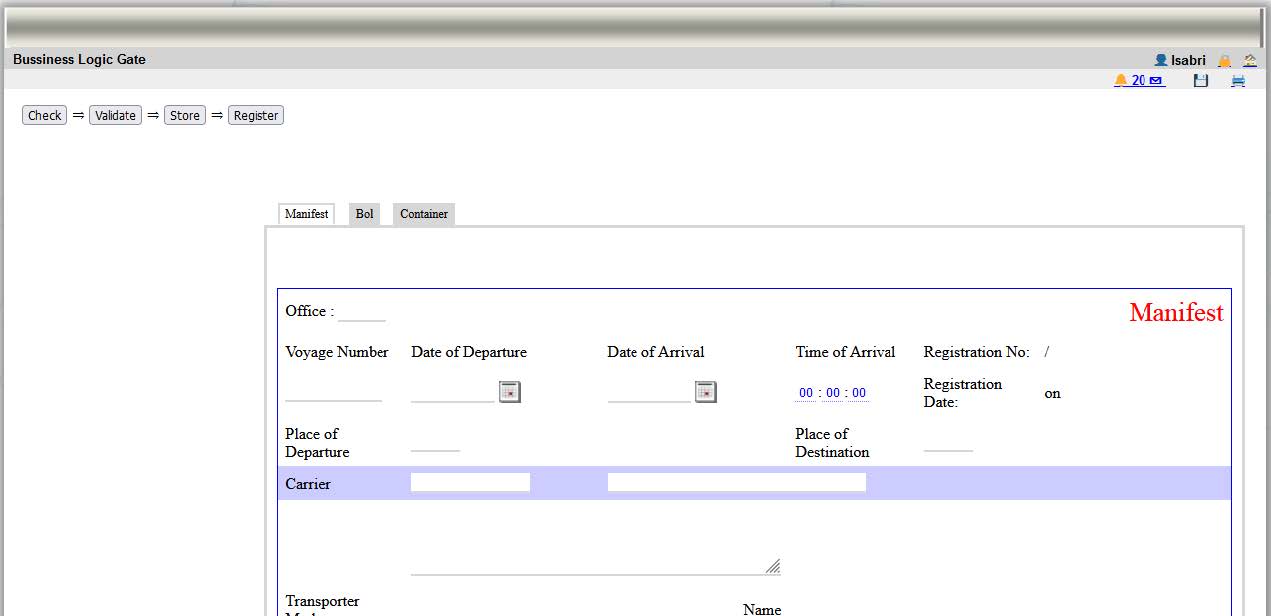
4: Example of form cargo with BOL tab and list of actions show on status bar to be applied on the e-document
5 / 23
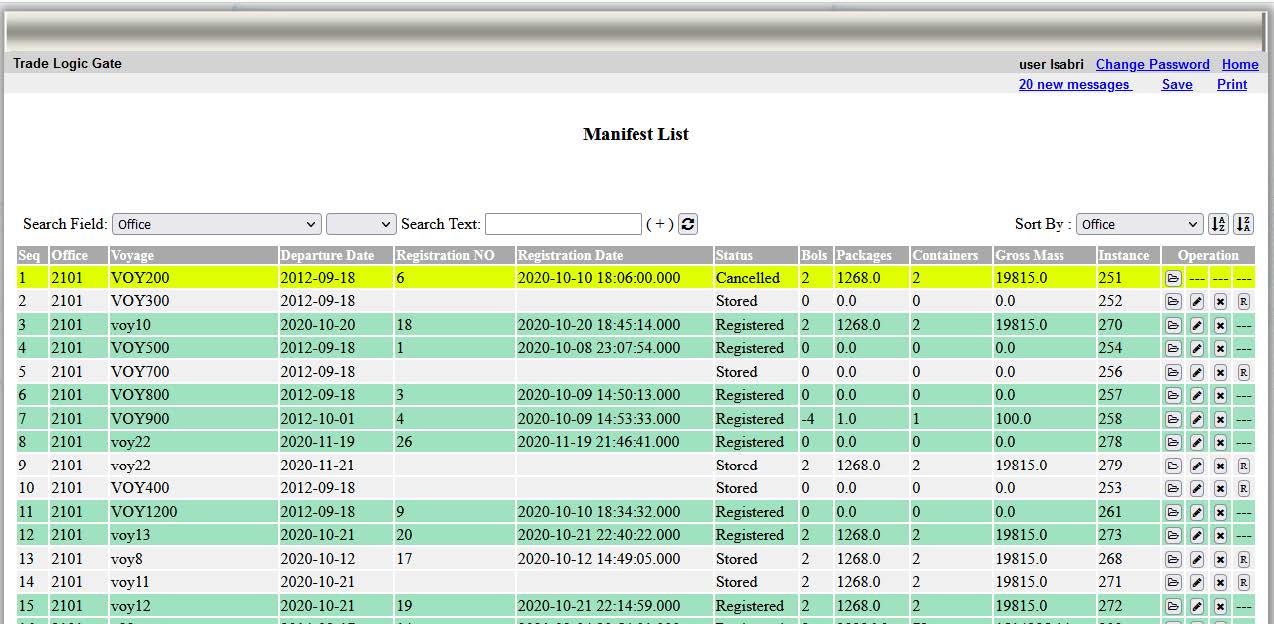
5: Example of a list of cargo documents with actions/tasks shown at the last column to be applied on each document.
6 / 23
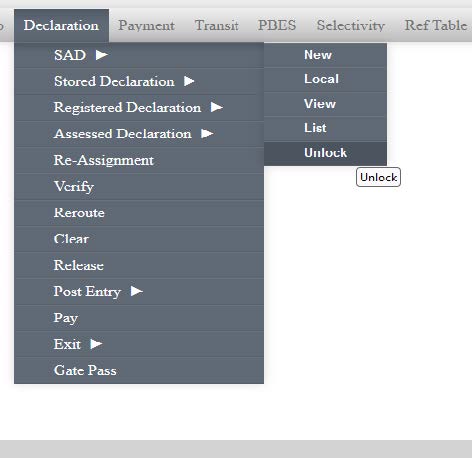
6: Example of main menu of Customs declaration module showing actions/tasks used to process the e-document.
7 / 23
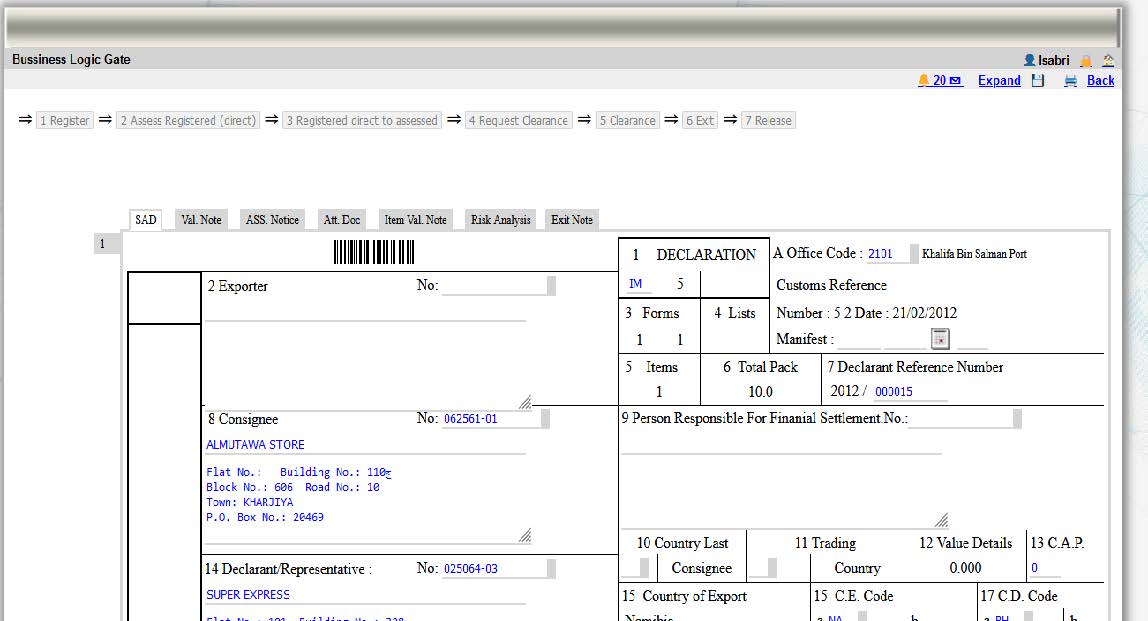
7: Example of customs declaration form with items and sub items showing the list of actions/tasks at the status bar.
8 / 23
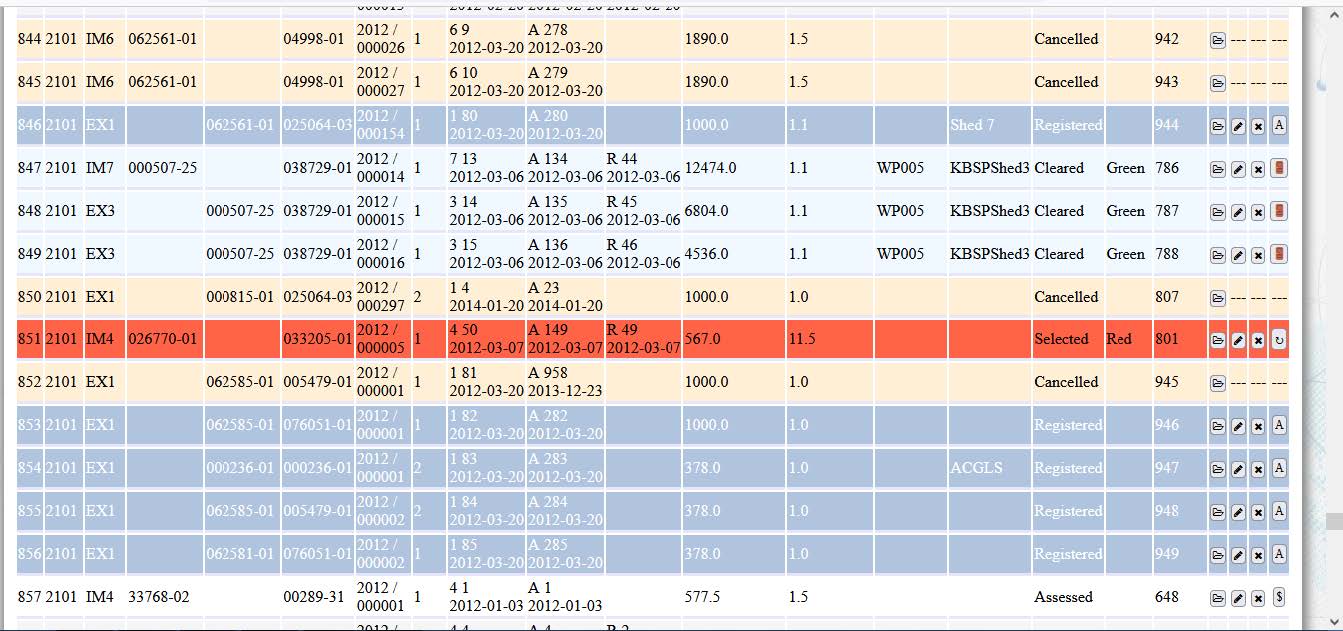
8: Example of list of e-documents for customs declarations with action/tasks shown at the last column.
9 / 23
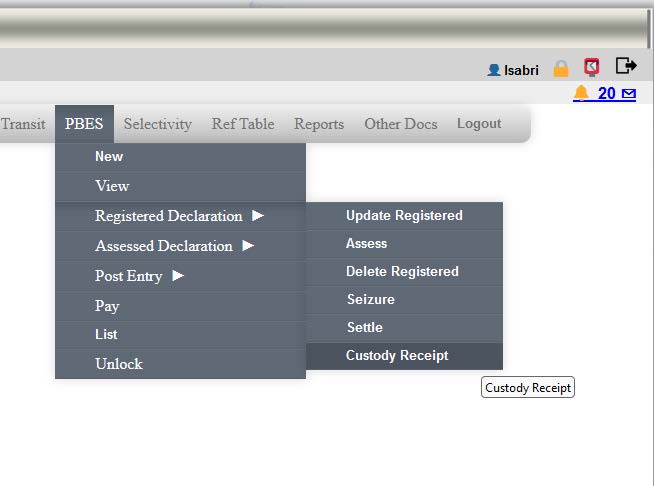
9: Example of main menu for passengers module
10 / 23
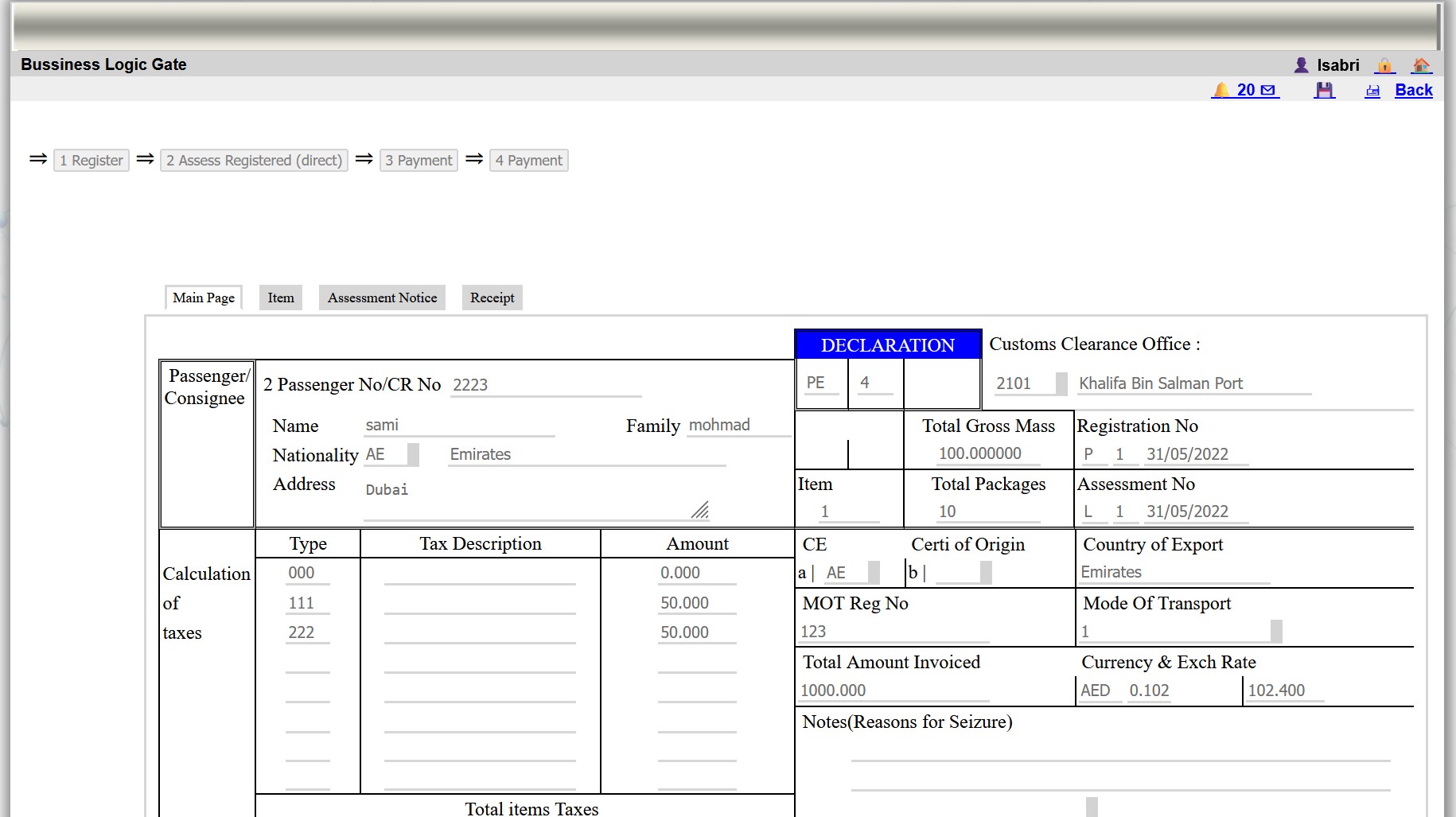
10: Example of the form for the passenger module.
11 / 23
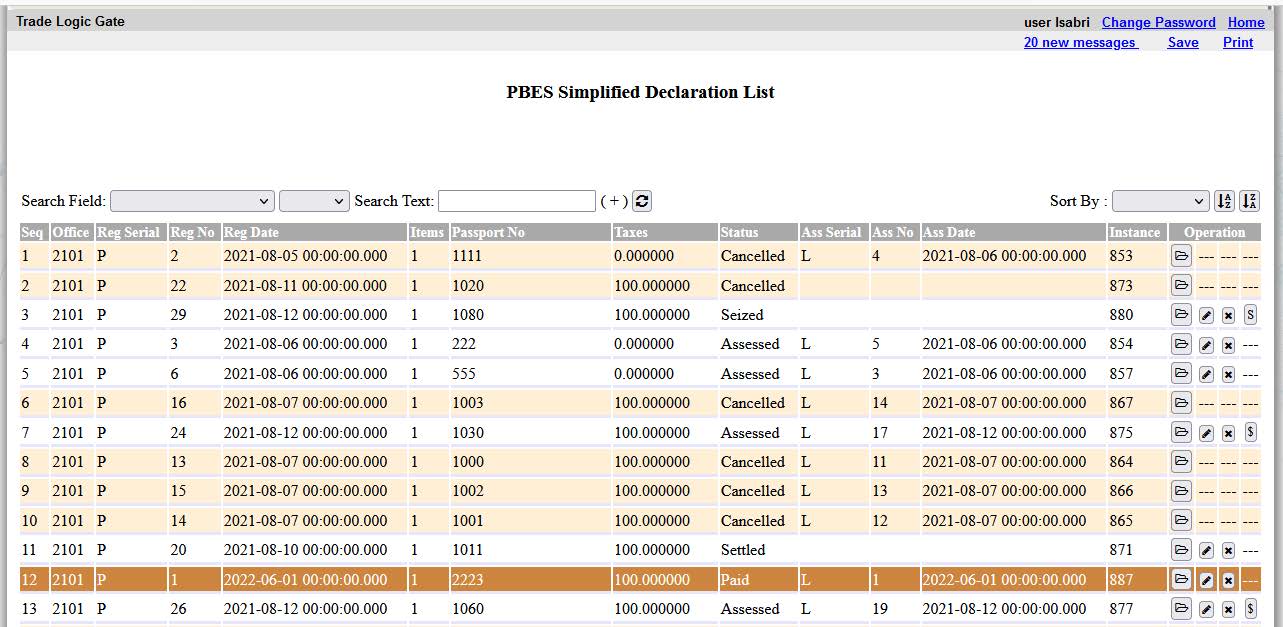
11: Example for the list of e-documents for passenger module with the actions/tasks at the last column.
12 / 23
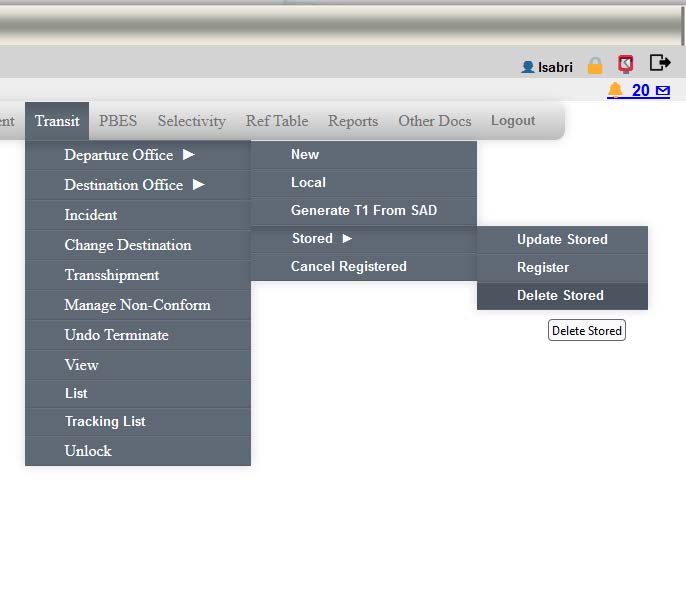
12: Example of main menu used for transit module.
13 / 23
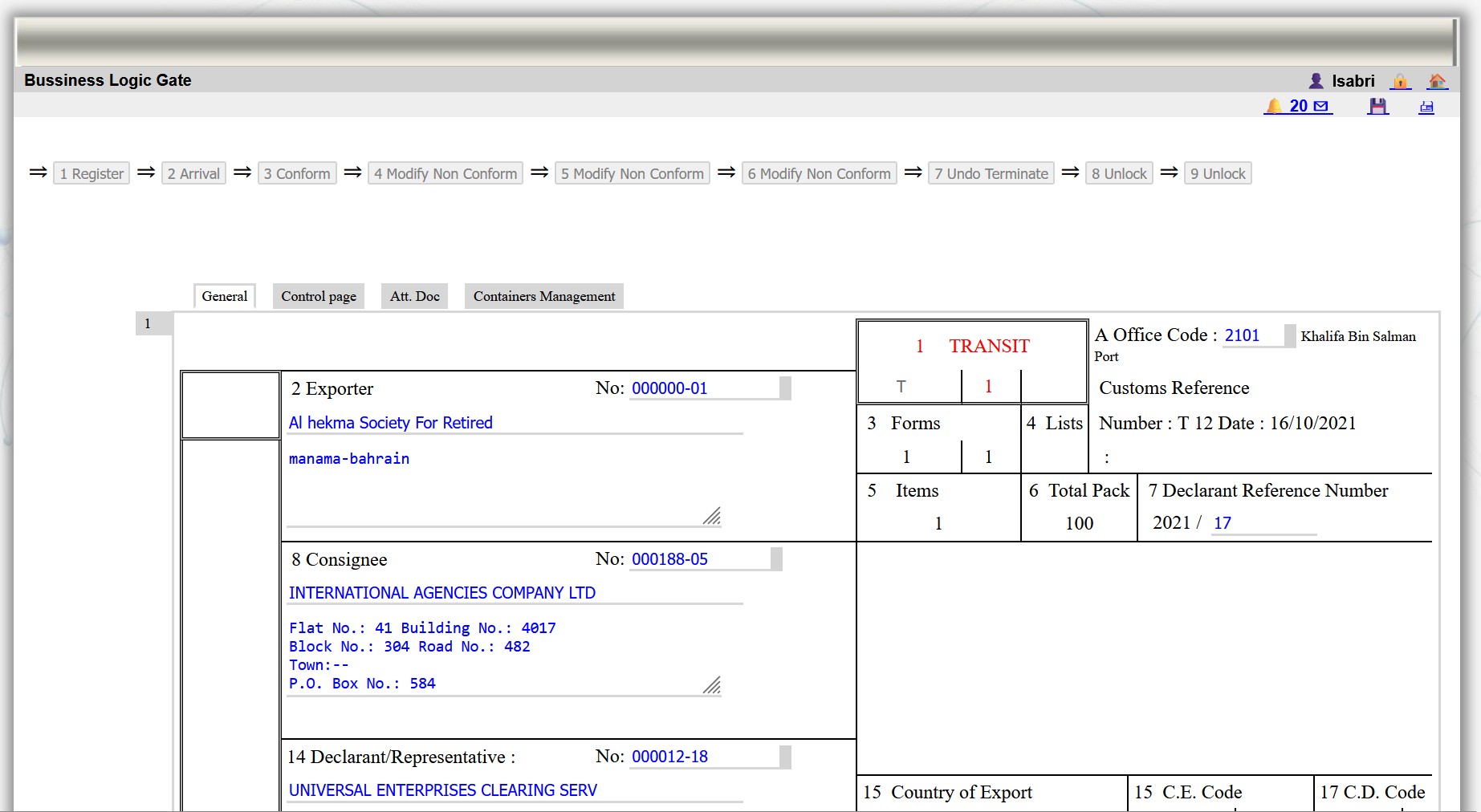
13: Example of form for transit module.
14 / 23
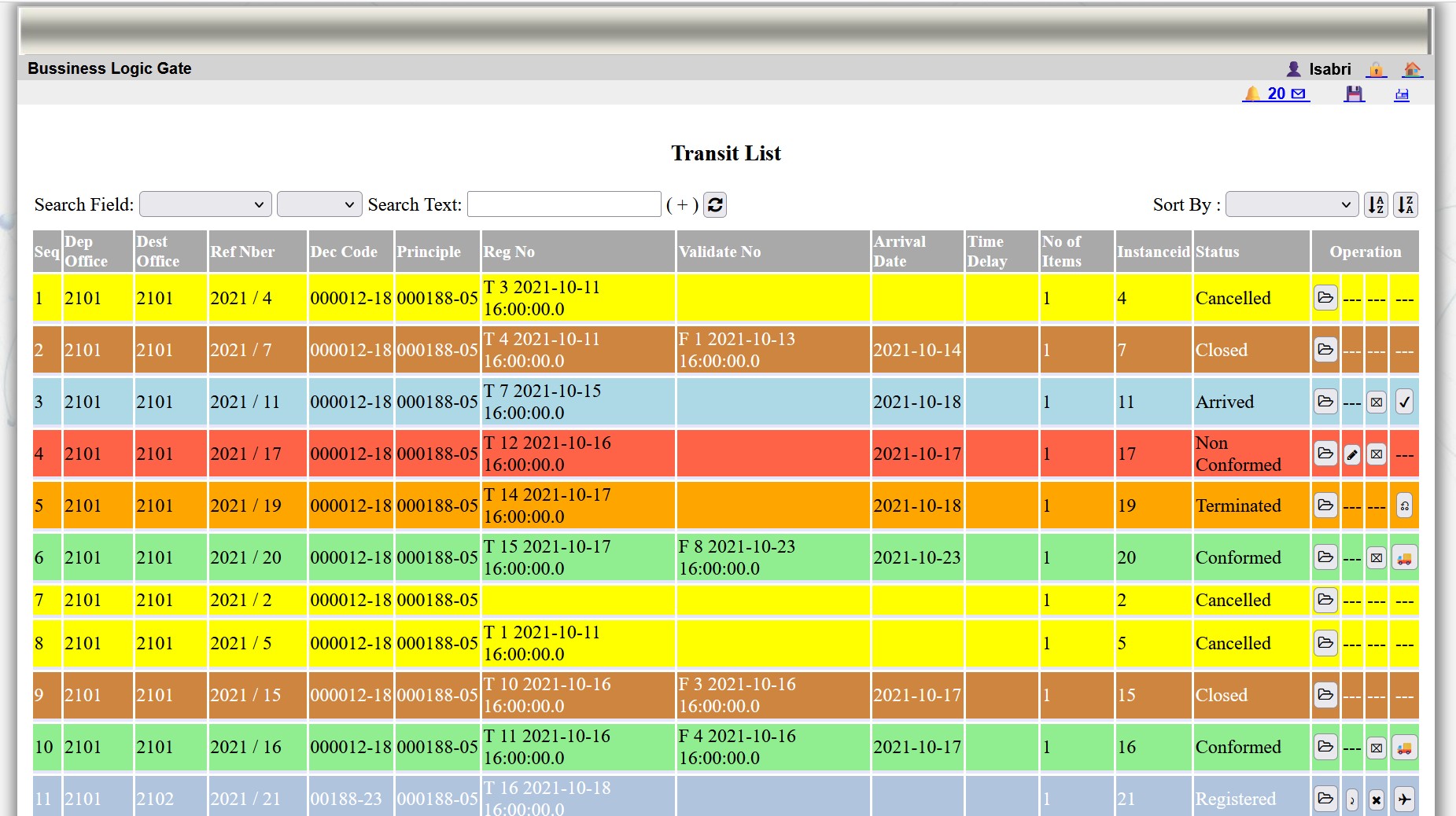
14: Example of a list of e-documents for transit module.
15 / 23
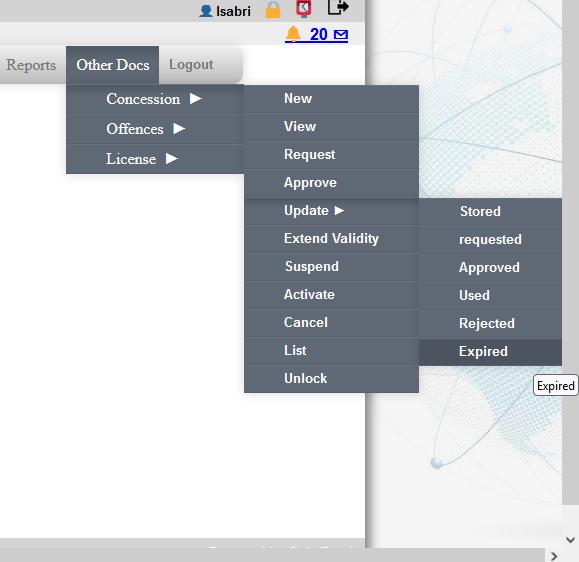
15: Example of main menu for a concession module.
16 / 23
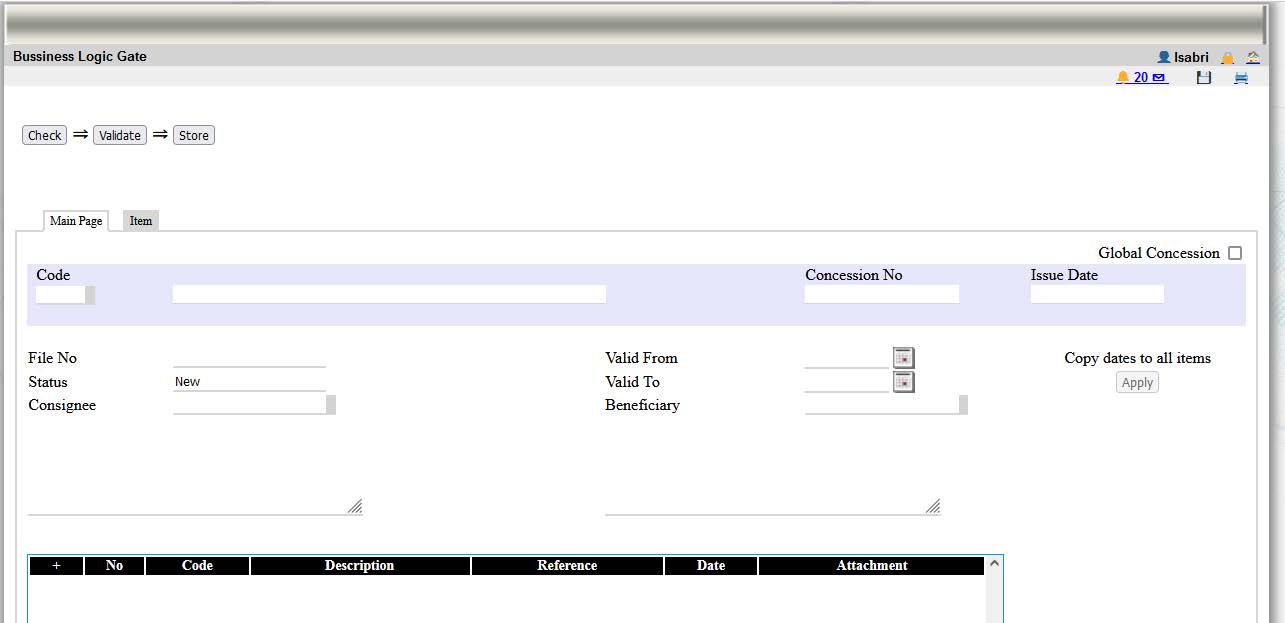
16: Example of a form for a concession module.
17 / 23
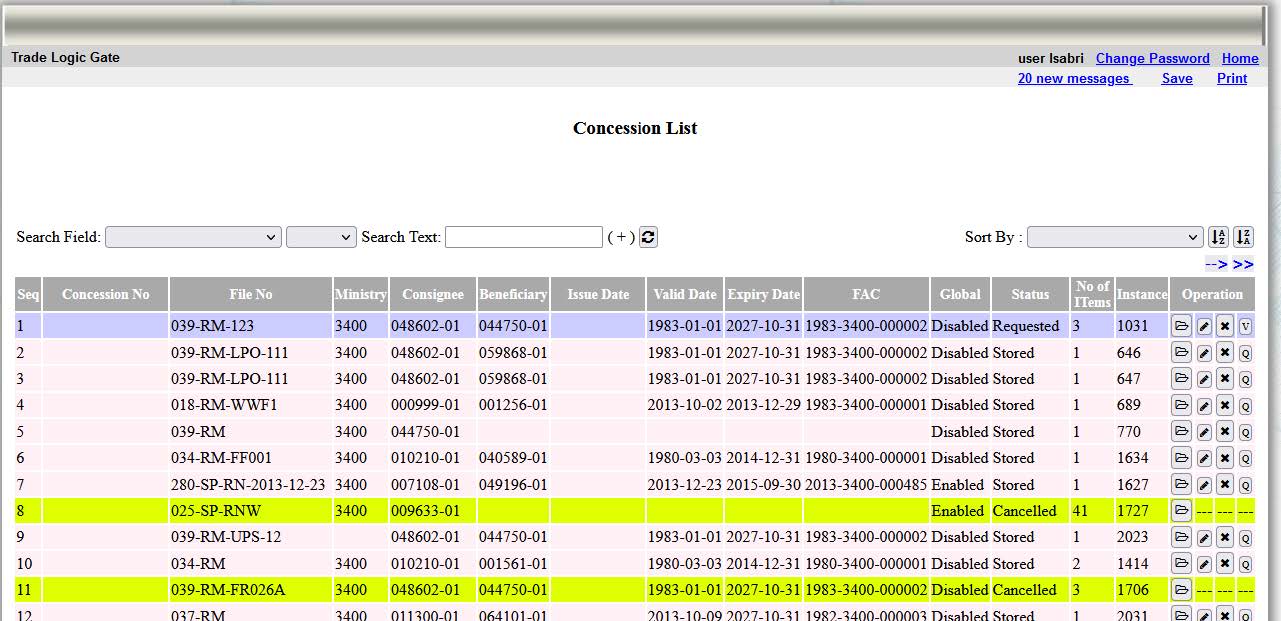
17: Example of a list of e-documents for a concession module.
18 / 23
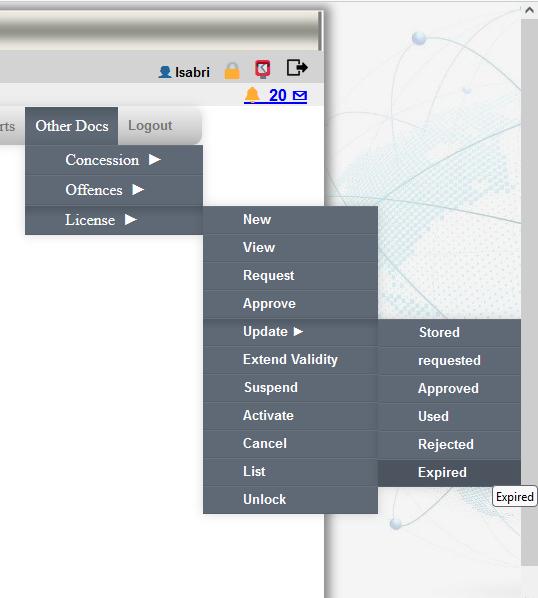
18: Example of main menu for a license module.
19 / 23
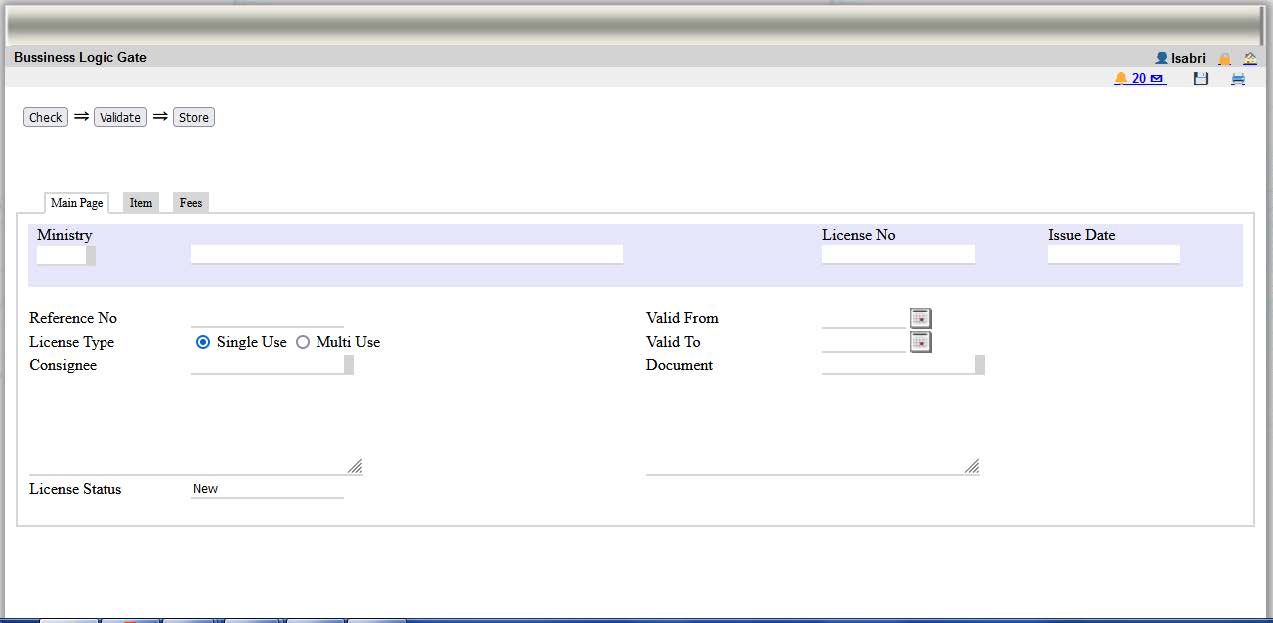
19: Example of a form for a license module.
20 / 23
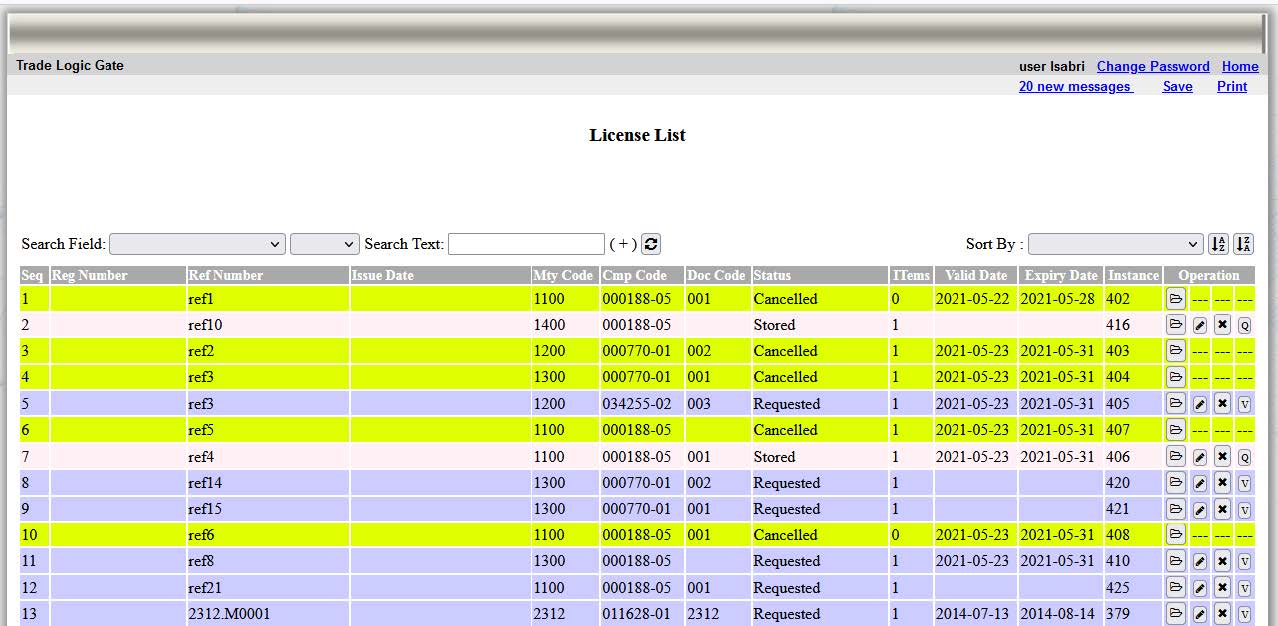
20: Example of a list of e-documents for a license module.
21 / 23
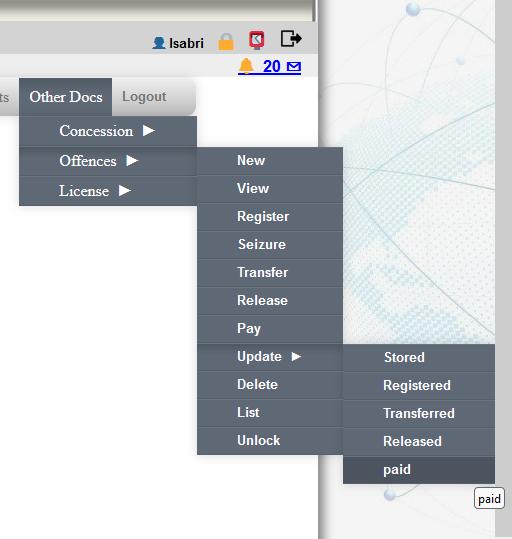
21: Example of main menu for a offences module.
22 / 23
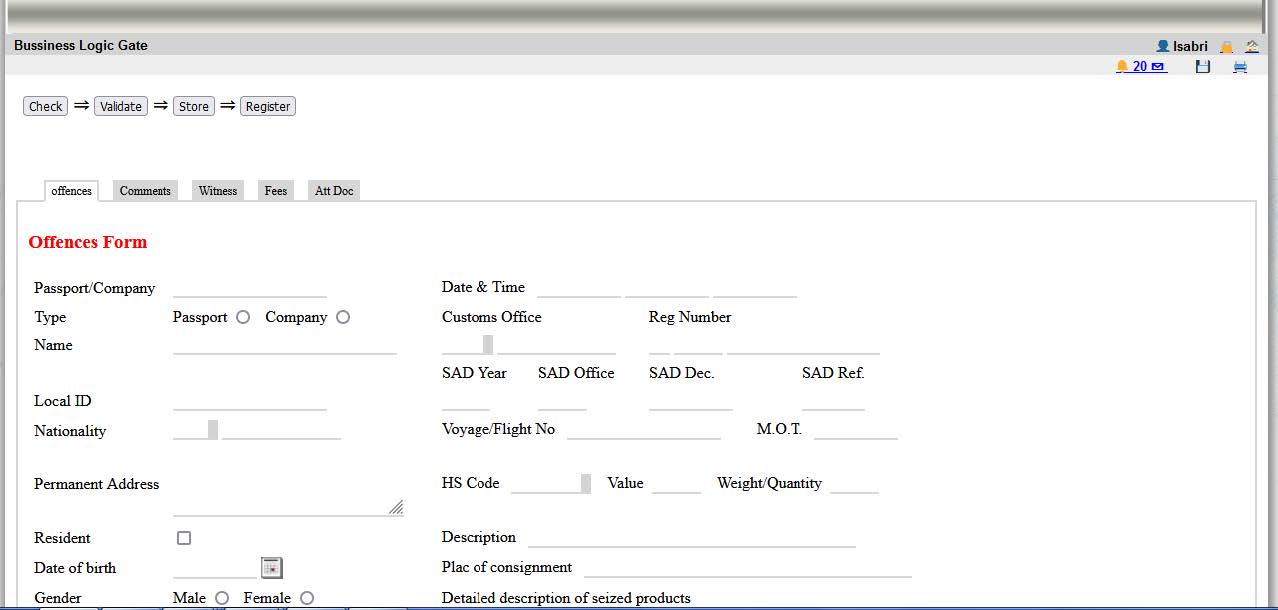
22: Example of a form for a offences module.
23 / 23
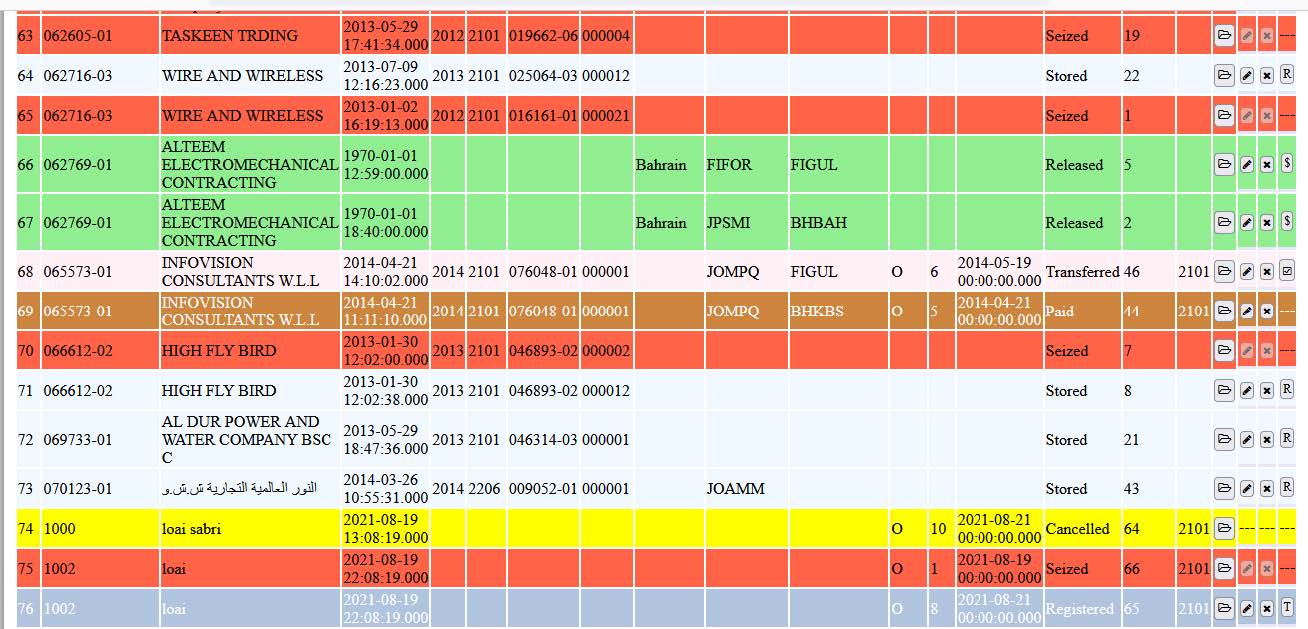
23: Example of a list of e-documents for a offences module.